 Patrik Oldsberg
PagerDuty + Backstage Integration Benefits
- Display relevant PagerDuty information about an entity within Backstage, such as the escalation policy, if there are any active incidents, and recent changes
- Trigger an incident to the currently on-call responder(s) for a service
How it Works
- The Backstage PagerDuty plugin allows PagerDuty information about a Backstage entity to be displayed within Backstage. This includes active incidents, recent change events, as well as the current on-call responders' names, email addresses, and links to their profiles in PagerDuty.
- Incidents can be manually triggered via the plugin with a user-provided description, which will in turn notify the current on-call responders (Alternatively, the plugin can be configured with an optional
readOnlyproperty to suppress the ability to trigger incidents from the plugin).- Note: This feature is only available when providing the
pagerduty.com/integration-keyannotation
- Note: This feature is only available when providing the
- Change events will be displayed in a separate tab. If the change event payload has additional links the first link only will be rendered.
Requirements
- Setup of the PagerDuty plugin for Backstage requires a PagerDuty Admin role in order to generate the necessary authorizations, such as the API token. If you do not have this role, please reach out to an Admin or Account Owner within your organization to request configuration of this plugin.
Feature Overview
View any open incidents

Email link, and view contact information for staff on call

Trigger an incident for a service


Support
If you need help with this plugin, please reach out on the Backstage Discord server.
Integration Walk-through
In PagerDuty
Integrating With a PagerDuty Service
- From the Configuration menu, select Services.
- There are two ways to add an integration to a service:
- If you are adding your integration to an existing service: Click the name of the service you want to add the integration to. Then, select the Integrations tab and click the New Integration button.
- If you are creating a new service for your integration: Please read the documentation in section Configuring Services and Integrations and follow the steps outlined in the Create a New Service section, selecting Backstage as the Integration Type in step 4. Continue with the In Backstage section (below) once you have finished these steps.
- Enter an Integration Name in the format
monitoring-tool-service-name(e.g.Backstage-Shopping-Cart) and select Backstage from the Integration Type menu. - Click the Add Integration button to save your new integration. You will be redirected to the Integrations tab for your service.
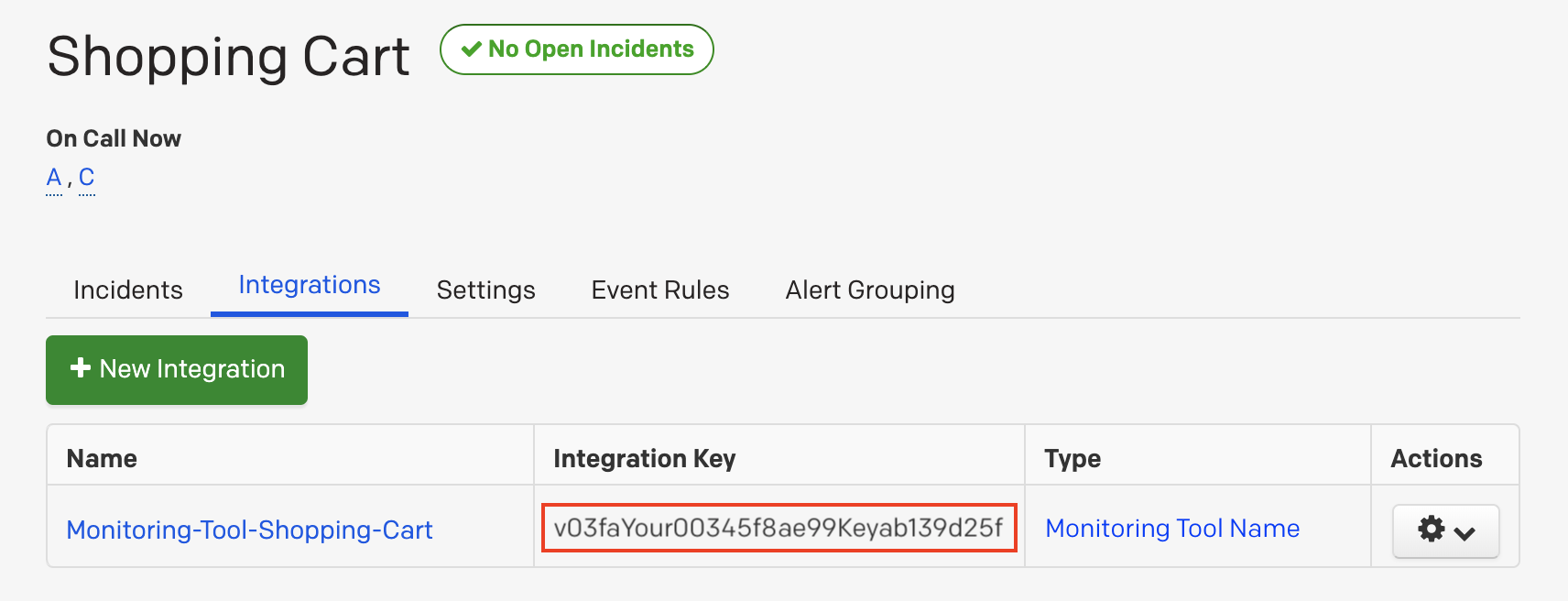
- An Integration Key will be generated on this screen. Keep this key saved in a safe place, as it will be used when you configure the integration with Backstage in the next section.
In Backstage
Install the plugin
The file paths mentioned in the following steps are relative to your app's root directory — for example, the directory created by following the Getting Started guide and creating your app with npx @backstage/create-app.
First, install the PagerDuty plugin via a CLI:
# From your Backstage root directory
yarn add --cwd packages/app @backstage/plugin-pagerduty
Next, add the plugin to EntityPage.tsx in packages/app/src/components/catalog by adding the following code snippets.
Add the following imports to the top of the file:
import {
  isPluginApplicableToEntity as isPagerDutyAvailable,
  EntityPagerDutyCard,
} from '@backstage/plugin-pagerduty';
Find const overviewContent in EntityPage.tsx, and add the following snippet inside the outermost Grid defined there, just before the closing </Grid> tag:
<EntitySwitch>
  <EntitySwitch.Case if={isPagerDutyAvailable}>
    <Grid item md={6}>
      <EntityPagerDutyCard />
    </Grid>
  </EntitySwitch.Case>
</EntitySwitch>
When you're done, the overviewContent definition should look something like this:
const overviewContent = (
  <Grid ...>
    ...
    <EntitySwitch>
      <EntitySwitch.Case if={isPagerDutyAvailable}>
        <Grid item md={6}>
          <EntityPagerDutyCard />
        </Grid>
      </EntitySwitch.Case>
    </EntitySwitch>
  </Grid>
);
Configure the plugin
First, annotate the appropriate entity with the PagerDuty integration key in its .yaml configuration file:
annotations:
  pagerduty.com/integration-key: [INTEGRATION_KEY]
The homepage component
You may also add the component to the homepage of Backstage. Edit the HomePage.tsx file, import PagerDutyHomepageCard and add it to the home page. e.g.
...
export const homePage = (
  <Page themeId="home">
    ...
    <Content>
      <CustomHomepageGrid config={defaultConfig}>
        ...
        <PagerDutyHomepageCard
          name="My Service"
          serviceId="<service id>"
          integrationKey="<integration key>"
          readOnly={false}
        />
      </CustomHomepageGrid>
    </Content>
  </Page>
);
Next, provide the API token that the client will use to make requests to the PagerDuty API.
Add the proxy configuration in app-config.yaml:
proxy:
  ...
  '/pagerduty':
    target: https://api.pagerduty.com
    headers:
      Authorization: Token token=${PAGERDUTY_TOKEN}
Then, start the backend, passing the PagerDuty API token as an environment variable:
$ PAGERDUTY_TOKEN='<TOKEN>' yarn start
This will proxy the request by adding an Authorization header with the provided token.
Optional configuration
Annotating with Service ID
If you want to integrate a PagerDuty service with Backstage but don't want to use an integration key, you can also annotate the appropriate entity with a PagerDuty Service ID instead
annotations:
  pagerduty.com/service-id: [SERVICE_ID]
This service ID can be found by navigating to a Service within PagerDuty and pulling the ID value out of the URL.
- From the Configuration menu within PagerDuty, select Services.
- Click the name of the service you want to represent for your Entity.
Your browser URL should now be located at https://pagerduty.com/service-directory/[SERVICE_ID].
Note: When annotating with pagerduty.com/service-id, the feature to Create Incidents is not currently supported
Custom Events URL
If you want to override the default URL used for events, you can add it to app-config.yaml:
pagerDuty:
  eventsBaseUrl: 'https://events.pagerduty.com/v2'
To suppress the rendering of the actionable incident-creation button, the PagerDutyCard can also be instantiated in readOnly mode:
<PagerDuty readOnly />
WARNING: In current implementation, the PagerDuty plugin requires the /pagerduty proxy endpoint be exposed by the Backstage backend as an unprotected endpoint, in effect enabling PagerDuty API access using the configured PAGERDUTY_TOKEN for any user or process with access to the /pagerduty Backstage backend endpoint. If you regard this as problematic, consider using the plugin in readOnly mode (<PagerDutyCard readOnly />) using the following proxy configuration:
proxy:
  '/pagerduty':
    target: https://api.pagerduty.com
    headers:
      Authorization: Token token=${PAGERDUTY_TOKEN}
    # prohibit the `/pagerduty` proxy endpoint from servicing non-GET requests
    allowedMethods: ['GET']
How to Uninstall
- Remove any configuration added in Backstage yaml files, such as the proxy configuration in
app-config.yamland the integration key in an entity's annotations. - Remove the added code snippets from
EntityPage.tsx - Remove the plugin package:
# From your Backstage root directory
yarn remove --cwd packages/app @backstage/plugin-pagerduty
- Delete the integration from the service in PagerDuty